A producer can hear the effect a track needs before knowing how to build it. Waveform 14.1 closes that gap: describe an instrument or effect, then refine the result inside the session. But creating a tool is only the first step. The real challenge is deciding whether it works musically and improves the mix.
Reported by ProSoundWeb on October 27, 2026, the update introduces AI-assisted plugin generation, expanded mix analysis, and a redesigned rendering system. Understanding how these features work, which editions support them, and what to listen for can help producers decide where they fit into an existing workflow.
From a Description to an Editable Instrument
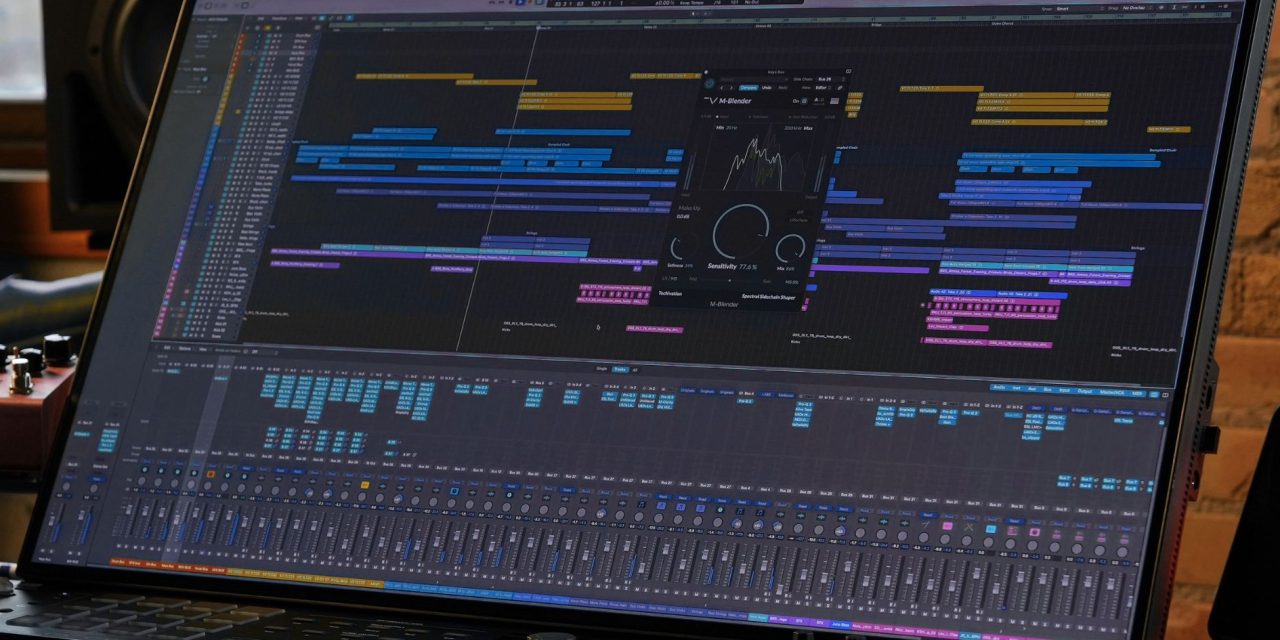
Waveform 14.1’s AI Assistant can turn an instrument’s description or effect into digital signal processing (DSP) code written in Cmajor. It compiles the code, addresses compilation errors, and loads the resulting plugin onto a track. Users can request automatable controls and custom interfaces, then revisit the generated files for further editing.
The feature is not available in every edition or on every supported operating system. AI-assisted Cmajor plugin generation requires Waveform Pro and runs on Apple Silicon Macs and Windows. Linux users and those on Intel-only Macs cannot use this generation feature. [1]
The practical opportunity is to describe a specific musical need rather than ask for something that sounds better. A producer could request a filter that moves gently during a sustained passage, for example. That is a possible experiment, not a tested preset or a guarantee about what the Assistant will create.
Once the plugin loads, the producer still needs to evaluate its behavior. Does it respond smoothly? Do its controls make sense? Does it add the intended movement without introducing unwanted distortion or distracting from the arrangement? The code may compile successfully, but the musical result still needs to earn its place.
Start Small Enough to Judge the Result
A useful first experiment has a clear audible goal and a manageable number of controls. Save a separate session copy, work on a short passage, and keep an untreated comparison available. This makes it easier to hear what the new effect actually changes.
Listen for sudden level jumps, unwanted distortion, and unexpected behavior at the extremes of each parameter. A filter might sound appropriate at one setting but become harsh when pushed further. An instrument might work well in isolation yet compete with another part once the full arrangement plays.
Automation deserves the same attention as the initial sound. A control that works at one setting may behave differently when moved through a phrase. Try a deliberate sweep before relying on it during an important transition. If the result becomes unpredictable, simplify the design and return to the original musical need.
The goal is not to create the most elaborate plugin possible. It is to solve a recognizable production problem without introducing new ones. Compare the result at matched levels, and keep it only if it serves the track better than the alternatives.
Measurements Can Sharpen the Next Question
Waveform 14.1 also expands the AI Assistant’s mix-analysis capabilities. It can analyze a full mix, individual tracks, or a selected passage, reporting measurements such as loudness, true peak, dynamics, spectral balance, masking, and mono compatibility. The mixcheck command can compare a mix against a streaming platform’s loudness target. [2]
These tools offer a practical loop: investigate a concern, make one change, and measure again. If a mix feels unbalanced, the measurements can help identify an area worth examining. Follow-up analysis can then show whether the adjustment changed the relevant readings.
However, measurements do not determine whether a musical choice is right. A bass-heavy chorus may be intentional, just as a dense arrangement may be central to a track’s identity. The point is to understand what is happening technically before deciding whether anything needs to change.
Listen for the relationship between kick and bass, the clarity of important parts, and whether the mix retains its intended impact at different listening levels. Check mono compatibility when a production depends on wide stereo effects. Use the measurements to guide these checks, not replace them.
For producers using the Assistant’s recommendations, the final decision remains theirs. A technically cleaner result is not necessarily a more compelling one, especially if the adjustment removes the energy or character that made the original passage work.
Delivery Is Part of the Update Too
Waveform 14.1 also redesigns the rendering system, making audio delivery part of the update’s wider workflow improvements. The Render dialog supports background export queues, customizable file naming, and LUFS normalization with a true-peak ceiling. These features can help producers manage exports without repeatedly handling each file manually.
Waveform’s standard rendering tools are available across editions. Waveform Pro adds advanced stem-rendering options organized by track, tag, submix, or output, alongside other advanced rendering functions. [1]
The Pro edition also introduces a dedicated loudness meter. It displays momentary, short-term, and integrated LUFS, loudness range, and true peak against a user-defined target. Stereo analysis includes phase correlation, balance, width, mono compatibility, and channel timing and polarity checks. [1, 3]
These tools serve different purposes. Mix analysis helps investigate problems while a production is being developed. Loudness and stereo measurements help evaluate the final result, while rendering controls determine how the finished mix or its stems are exported.
Producers should still check the exported files rather than assuming the settings guarantee a successful delivery. Confirm that filenames are correct, exports contain the intended material, and normalization has not compromised the desired level or dynamics. For stems, verify that the files retain the relationships needed when they are brought back together.
For DLK Music Pro readers, Waveform 14.1 connects three stages of production: creating tools, evaluating the mix, and preparing the finished audio. AI-assisted plugin generation can expand what a producer experiments with, while measurements and rendering options help assess and deliver the result.
The Bottom Line
Waveform 14.1 connects AI-assisted plugin creation with mix analysis and improved audio delivery. These tools can help producers explore ideas and refine their workflow, but the final judgment still rests with the ears behind the mix. The goal is to make better production decisions, not simply to generate more tools.
What would you want an AI-generated plugin to solve in your next session? Find more production insights and software updates at DLK Music Pro.
Sources
[1] Tracktion — What’s New in Waveform 14. Official feature, edition, and platform distinctions.
[2] Tracktion — Waveform AI Assistant. Official workflow and mix-analysis description.
[3] ProSoundWeb — Tracktion Waveform 14.1 Update Adds Plugin Generation. Published October 27, 2026.